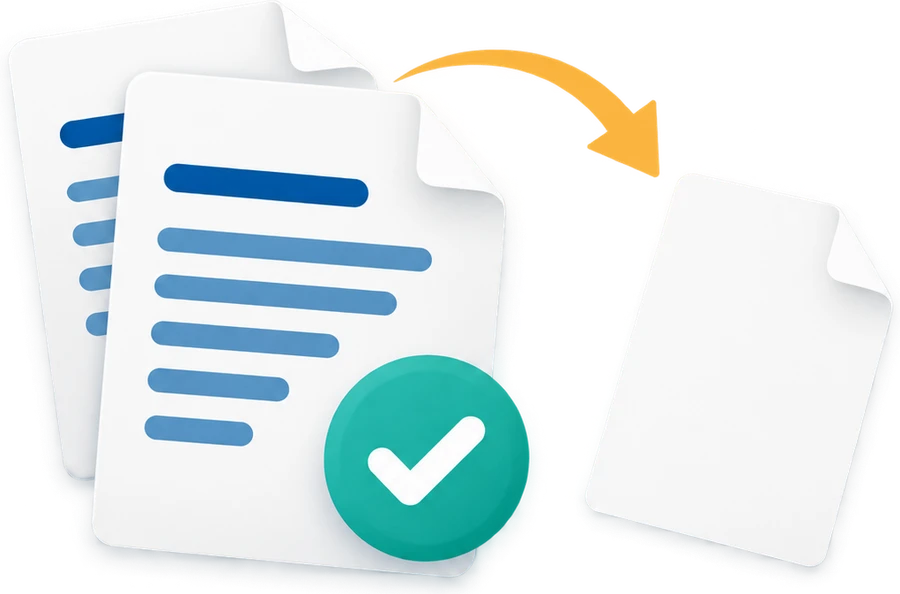
Find possible blank backs in scanned documents. Checked pages are excluded: inspect faint content and annotations, then confirm your selection before saving.
Files are processed on your device and are not uploaded to a server. Tool assets load from this site. Use is free, with no sign-in required.
Find possible blank backs in scanned documents. Checked pages are excluded: inspect faint content and annotations, then confirm your selection before saving.
Tool illustration
How to use
Choose a PDF and wait for possible-blank analysis.
Enlarge pages to review them and adjust exclusion checkboxes.
Review kept/excluded counts and page numbers, then confirm saving a copy.
What this tool does
All, possible-blank and selected-page filters with enlarged previews
Candidate preselection, manual changes and a final confirmation list
File and processing limits
PDF files up to 50 MB and 500 pages. Password-protected files need an unlocked copy.
Large documents may need to be split further to fit your device’s memory.
Automatic analysis can mistake a page for blank. At least one page must remain to save a copy.
File processing and privacy
Files are processed on your device and are not uploaded to a server. Tool assets load from this site. Use is free, with no sign-in required.
Frequently asked questions
Are checked pages the ones that stay?
No. Checked pages are excluded from the copy. Review the excluded-page list and remaining count before saving.
Will the kept pages retain text and order?
The copy omits selected pages without rebuilding kept pages as images, retaining their original content and order.
Do I need to upload my file?
No. Your selected file is processed in your browser. No account is required, and the original file stays unchanged.
 Smileon